TUI Guide
💡 We recommend using Windows Terminal (Start Button => Right-click => Terminal, or search for "Terminal") to run this application for better compatibility and display.
After installing mailslide using uv tool, run mailslide-tui to open the TUI interface.
Interaction Guide
- Tab / Arrow keys: Navigate / Select
- Enter: Execute / Confirm
- Mouse interactions are also supported (clicking elements directly)
Shortcuts
| Key | Tab / Function |
|---|---|
H |
Home: Run Jobs, View logs |
S |
Schedule: Setup automatic scheduling |
G |
Guide: User Guide |
C |
Configuration: View / Edit config files |
A |
About: System Status, initialization, and updates |
L |
Language: Toggle UI language (zh-TW / en-US) |
D |
Dark Mode: Toggle theme color (Light / Dark) |
Q |
Quit: Exit application |
Tabs Overview
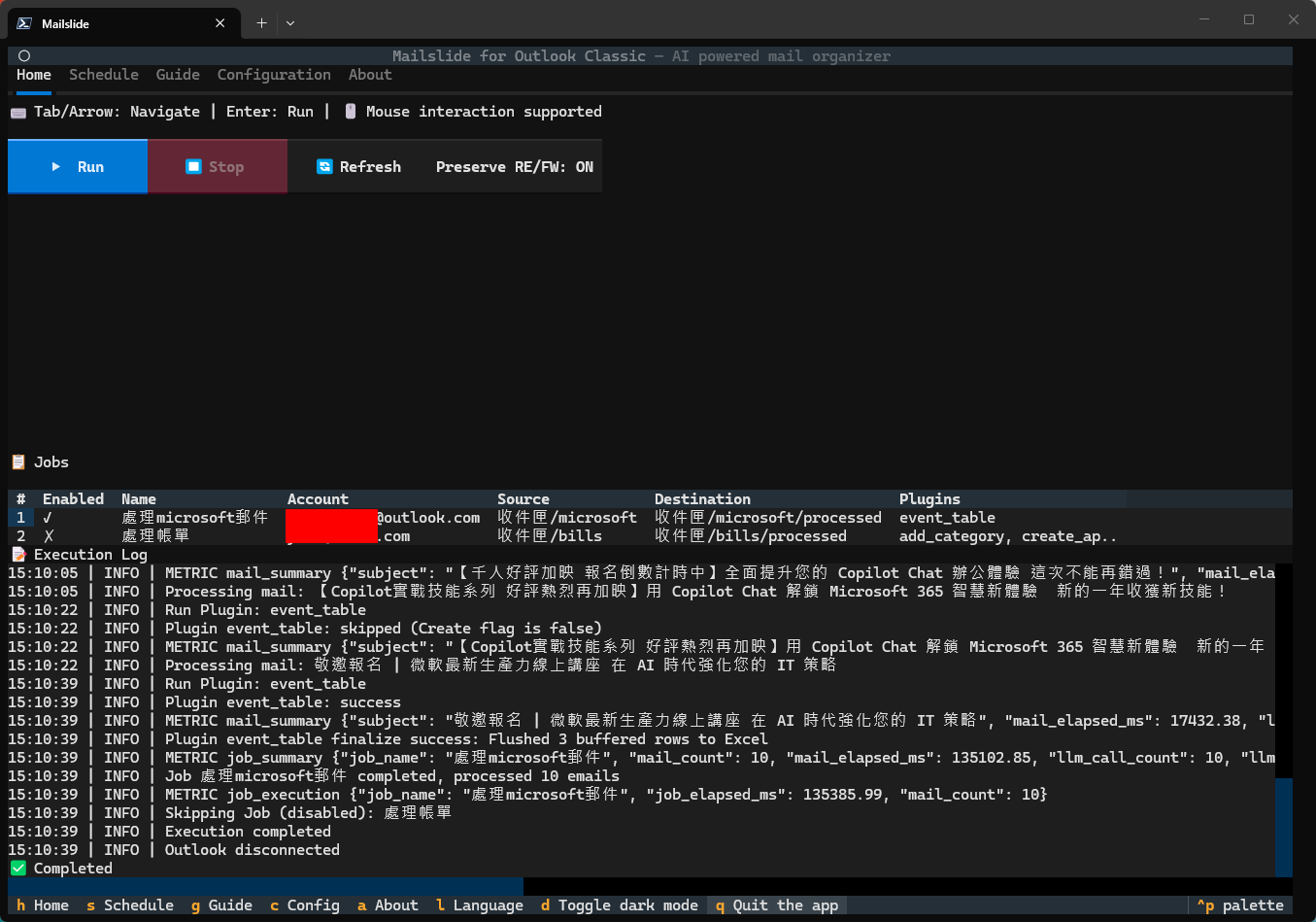
- Home: View / Execute Jobs, view execution logs.
Preserve RE/FW: Whether to preserve previous contents of repeatedly replied/forwarded emails. Defaults toON.-
-
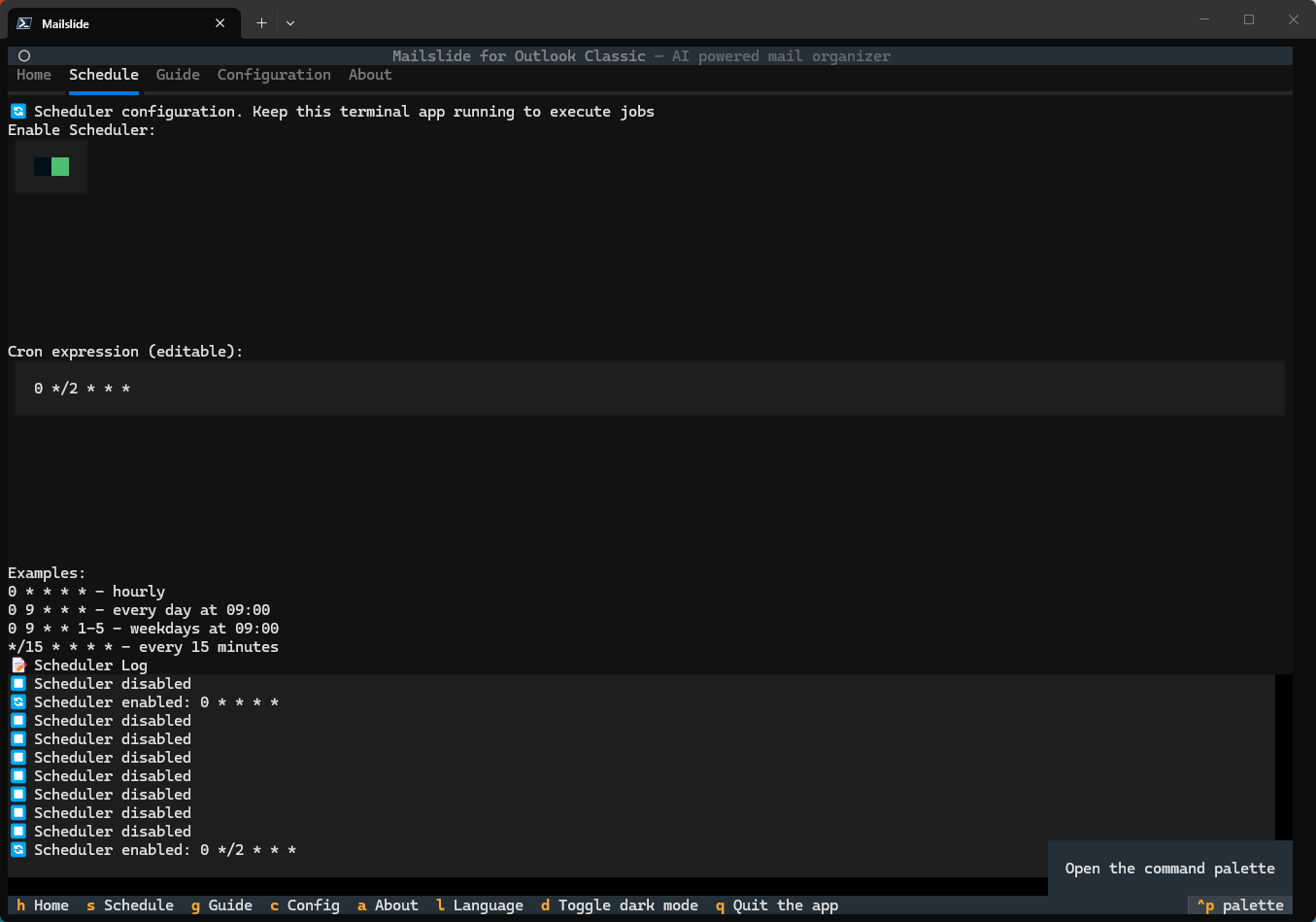
Schedule: Setup automatic scheduling.
- Core Mechanism: The scheduling feature is driven by the internal
pycron. You do not need to configure the Windows Task Scheduler separately. As long as the TUI is open, the program will automatically execute the corresponding Job in the background when it's time. - Use CRON expressions to setup schedules. Supports
*,,,-,/. For example,0 9 * * 1-5means running at 9 AM from Monday to Friday. -
-
Guide: User Guide.
- Configuration: View / Edit config files.
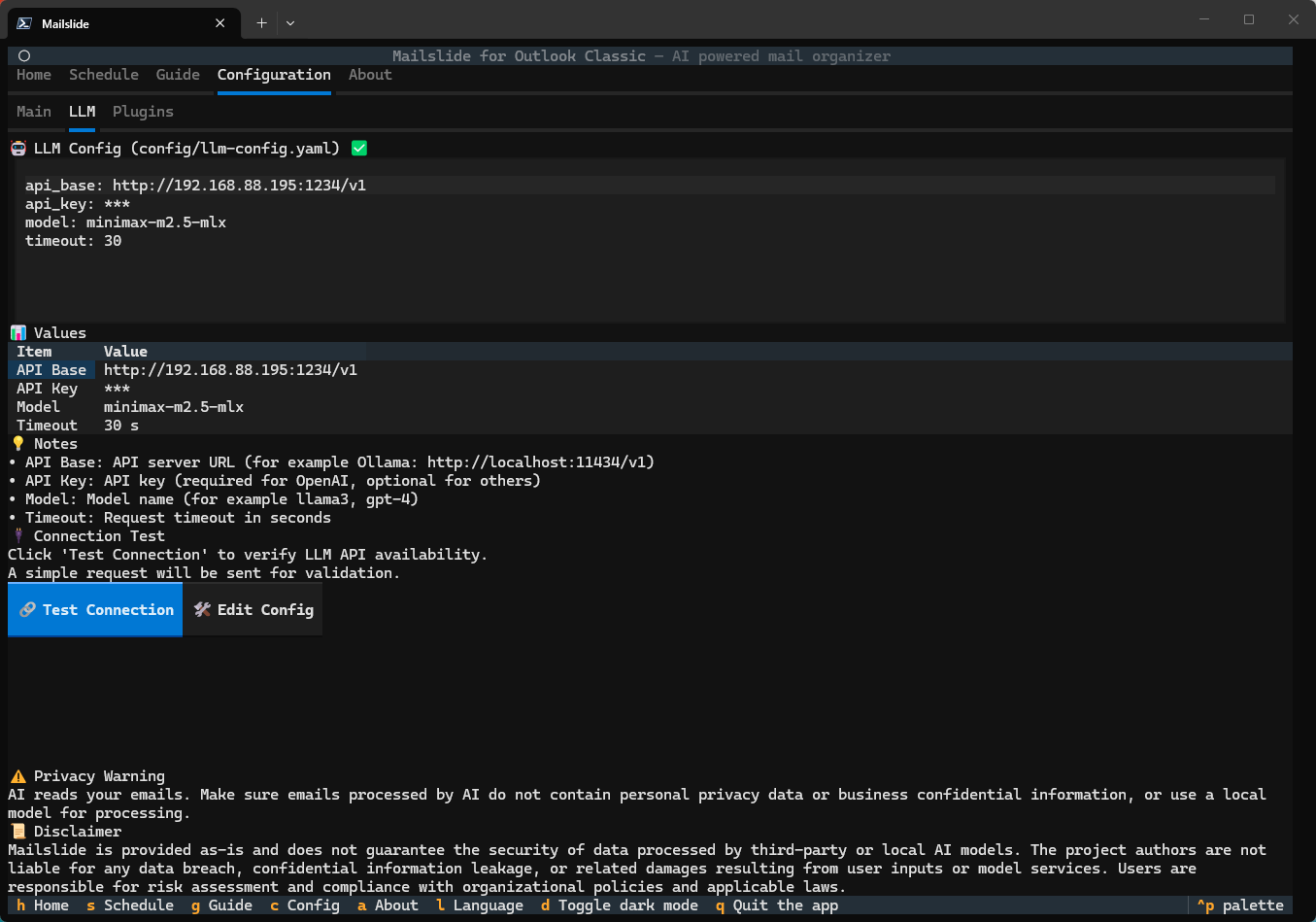
- General Settings: Add / Delete Jobs, edit / validate / save main configuration directly.
- LLM Settings: Form-based editor for LLM configuration, includes connection testing.
- Plugin Settings: Form-based editor for each Plugin's settings.
- About: System status / config file checks, initialization, update checking.
Modifying Configurations
- For first-time use, go to the About tab and click Initialize Config once, then restart the application.
- Switch to the Configuration tab:
- General Settings: Add / delete jobs, modify
config.yaml, validate and save.- For first-time use, please set up the Outlook Classic email account or PST file path you wish to use.
- LLM Settings: Edit
llm-config.yaml, test connection.- For first-time use, please set up the LLM service you wish to use.
- API Keys will be encrypted and stored securely using Windows DPAPI. Please do not directly write the API Key into
llm-config.yaml; use the input form provided in the TUI.
- Plugin Settings: Select a plugin and edit
config/plugins/*.yamlvia the form interface.
Config Saving Protection and Recovery Mechanism (TUI):
- Before saving the main configuration, a schema and runtime validation is performed to prevent writing invalid configurations.
- Before overwriting existing files, a backup is automatically created (e.g.,
config.yaml.bak,llm-config.yaml.bak,<plugin>.yaml.bak). - Critical Recovery Guide: In case you accidentally broke the configuration file and the TUI fails to start properly, you can go to the
config/orconfig/plugins/directory of the application, delete the broken.yamlfile, and simply rename the latest.bakfile back to.yamlto restore functionality.
About Plugin Configuration (TUI)
In the Configuration → Plugin Settings tab:
- Select a plugin.
- Click Edit Config.
- Adjust the fields in the modal and click Validate or Save.
Behavior details:
- Read priority: If
config/plugins/<name>.yamlexists, it will be loaded; otherwise, the default sample falls back. - Validation layers: First performs basic required / type / option checks, then applies
_ui.validation_rules. - Safe writing: Before saving, reserved keys like
_uiand_metaare stripped, and a backup<name>.yaml.bakis created before overwriting the file. - Fallback mechanism: If the sample is missing
_ui, the plugin falls back to a read-only YAML view mode. response_json_formatediting rules:start/end(andaction) are fixed and cannot be modified, while other fields' values can be adjusted.